
THE SHORT ANSWER
First check whether Android's hotspot switch actually turned off. Then compare the timing with the phone's idle timeout and your Hotspot Manager time, battery, and data rules. A connected device losing internet while the switch stays on is a different issue.
An unexpected disconnection can have more than one explanation. The phone may have switched its hotspot off, the connected device may have left the Wi-Fi network, or the mobile connection may have stopped providing internet.
Checking which of those events happened gives you a much better starting point than changing several settings at once. Keep the phone and one connected device nearby while you observe a short session.
Check the hotspot switch when the problem happens
Open Android's hotspot settings immediately after the disconnection and look at the actual switch. If it is off, investigate a stopping rule or system behavior. If it is still on, check whether the other device remains connected to Wi-Fi and whether the phone itself has mobile internet.
Write down the time since the session started and any message displayed by Hotspot Manager. A disconnect at a repeatable interval is a useful clue, but it is not enough on its own to identify the cause.
Look for Android's automatic idle timeout
Google's Pixel documentation describes a setting that switches the hotspot off when no devices are connected. On Pixel, it is available in Settings, Network & internet, Hotspot & tethering, then Wi-Fi hotspot, under Turn off hotspot automatically. Other phones may use a different label or provide different options.
Check the behavior offered by your own phone. For example, if a laptop stops using Wi-Fi when it sleeps, the phone may no longer have a connected client. A system idle timeout is separate from a session timer you configured in Hotspot Manager.
Review all active Hotspot Manager rules
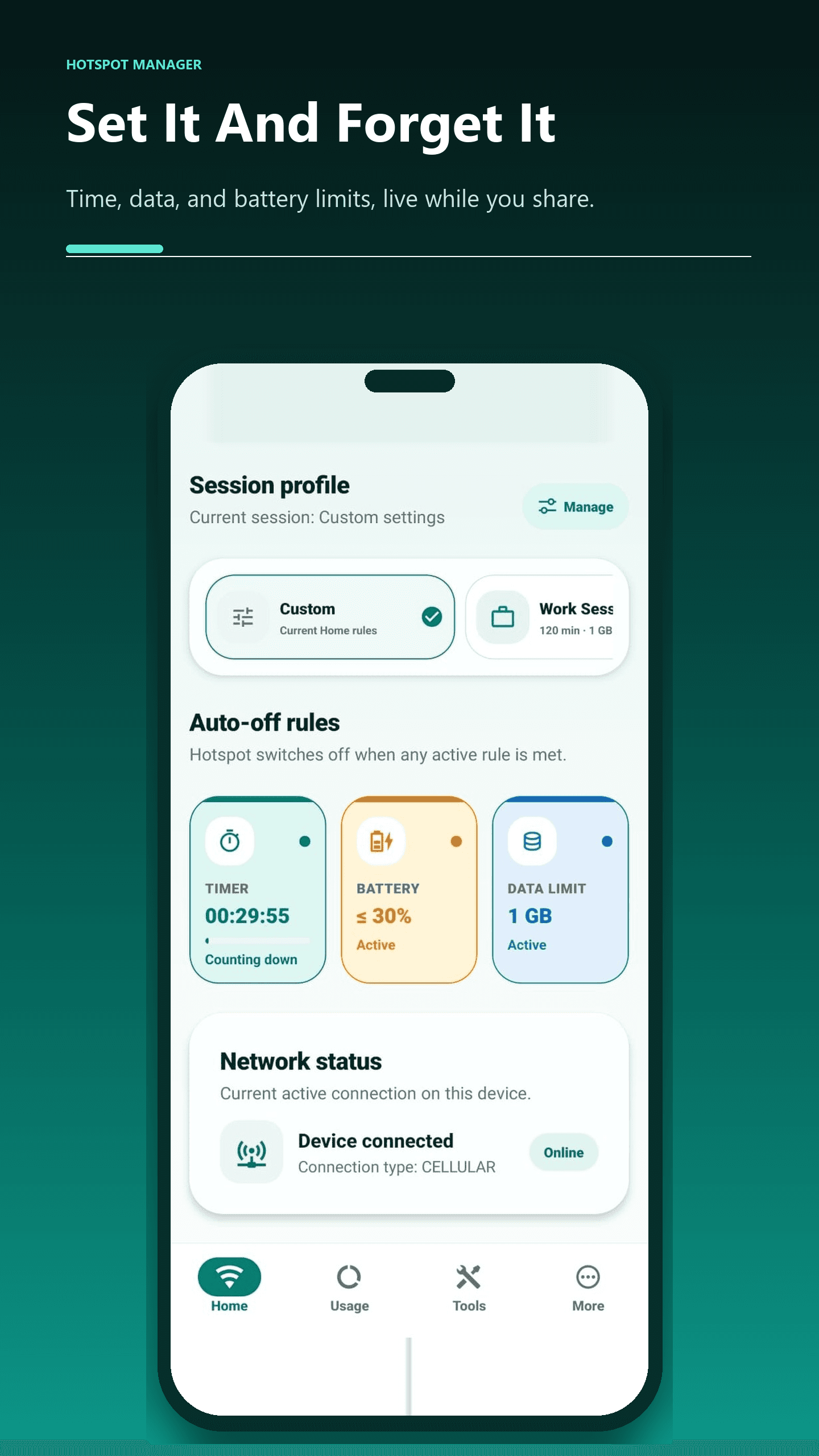
Check the timer, battery threshold, and data limit that applied when the session started. A battery or data rule may be reached before the planned time limit. If you used a saved profile, inspect that profile's values rather than assuming it still matches your current plan.
The app distinguishes a completed automatic stop from a stop that Android did not permit. If the app asks you to open Settings and stop the hotspot manually, follow that instruction and confirm the switch. An app session ending and the hotspot being disabled are not interchangeable states.
Change one thing at a time
A simple comparison helps you distinguish a repeated behavior from an unrelated change. Use a short task and keep its conditions as consistent as possible.
- Confirm that the phone's own hotspot can provide a working connection to one nearby device.
- Review the intended session time and any battery or data thresholds before starting Hotspot Manager.
- Read and address any specific permission or compatibility notice the app shows.
- Observe when the connection changes, then check the Android hotspot switch and the app's result message.
- Adjust only the setting that appears relevant and compare another short session. Keep notes instead of changing several unrelated settings together.
If the hotspot stays on but internet stops
Check whether the phone can load a page using mobile data. If the phone also has no internet, focus on its connection, signal, and plan rather than its hotspot timer. Carrier-specific tethering policies can also affect sharing, so confirm the details of your plan with the carrier when needed.
If only the receiving device disconnects, check its Wi-Fi connection and power behavior. Being joined to the hotspot and having a working internet connection are separate checks; record which one fails before deciding what to change.
Collect details that make troubleshooting easier
Send support your phone model, Android version, Hotspot Manager version, active rules, and the exact message shown. Explain whether the system switch turned off, whether the receiving device remained on Wi-Fi, and whether mobile internet still worked on the phone.
Android controls differ across manufacturers and versions. The app works with the capabilities made available on your device; upgrading to Pro does not grant extra system privileges or guarantee automatic hotspot control on every phone.
Need help with your phone?
Include your phone model, Android version, and the app message when you contact Hotspot Manager support.