
THE SHORT ANSWER
Check Android's mobile data settings and your carrier's records, then use Hotspot Manager for the phone-level readings and local session history available on your device. A phone's mobile data total is not automatically a hotspot-only or per-device total.
When a laptop uses your phone's hotspot, its downloads share a mobile connection with the phone's own apps. That makes a single data number easy to misread: it may describe the phone, a reporting period, or a session rather than one connected device.
A useful first step is to ask what each screen is actually measuring. The same date range, connection type, and measurement scope matter more than whether two screens display a similar-looking number.
Start with Android's mobile data settings
Open your phone's mobile data settings and select the reporting period you want to inspect. Google's Pixel instructions use Settings, Network & internet, then SIMs; other manufacturers may use labels such as Connections or Data usage. Look for a separate tethering breakdown if your device provides one, but do not assume every phone will.
Use the carrier's app or account records to confirm the allowance that applies to your plan. Phone measurements and carrier measurements can differ, and a calendar month is not necessarily the same period as your carrier's billing cycle.
Read the Data Usage screen in Hotspot Manager
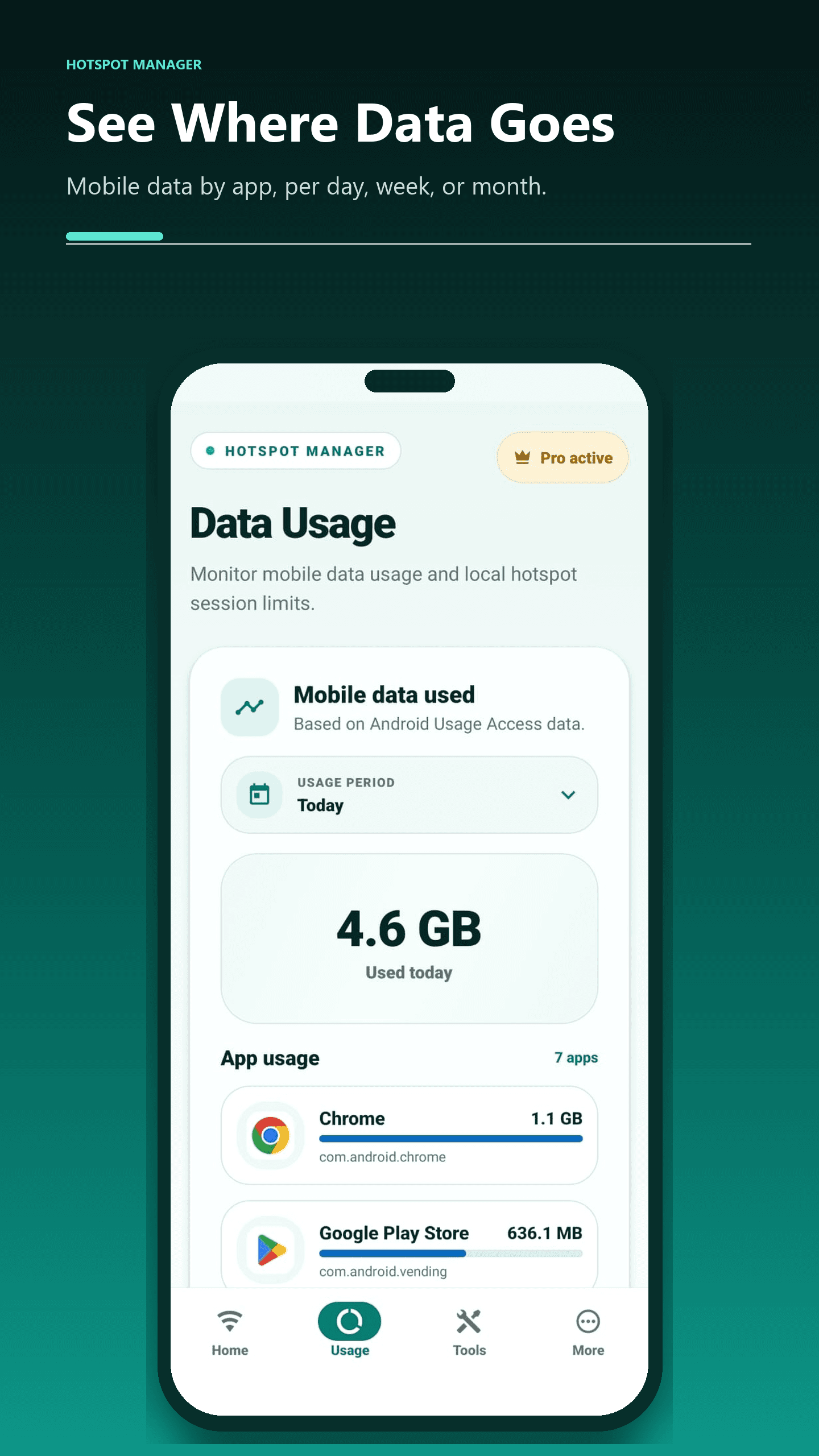
The app's Data Usage screen combines Android mobile data information with local hotspot session information. Read the heading and period for each section before comparing values.
- Open Data Usage in Hotspot Manager and choose the period you want to review.
- If prompted, use Open Usage Access to grant the requested Android access, then return to the app.
- Tap Refresh data usage after changing access or when you need a fresh reading.
- Review the Android mobile data total separately from the local session limits and history shown on the screen.
- Use the Network tools shortcut to Android's own Data usage screen when you want to compare the same period in system settings.
Know which numbers you can compare
The app requests Android mobile data totals for a time range. Those totals can include activity from the phone itself; they should not be presented as a precise measurement of one hotspot client. A connected-device count is also not a traffic report for each device.
Local session history helps you review when you shared a connection and the session readings available at the time. If a reading is unavailable or described as an estimate, keep that qualification when comparing it with another screen.
- Match the start and end dates before comparing usage totals.
- Keep mobile data, Wi-Fi traffic, and session information separate.
- Do not treat a missing or unavailable reading as proof of zero usage.
- Use carrier records when checking your billed allowance or plan-specific tethering policy.
Use a session data rule and a budget for different jobs
A session data rule belongs to a specific hotspot routine. Configure it before starting a session, turn on Use data limit, choose the amount and unit, and tap Apply. Read the app's device notices before relying on automatic stopping at that amount.
A budget is useful for reviewing a longer pattern. The Free tools include a daily budget and a reminder, while Pro adds more budget and reminder options. Neither a budget notification nor a session rule changes the data allowance in your carrier account.
Android may also offer a system-wide mobile data warning or limit. That is a separate setting, and a system limit may affect the phone's mobile connection as a whole. Review the scope of the control before applying it.
Make the next session easier to understand
For a simple comparison, note the reporting period and starting reading, use one connected device for a known task, then refresh the reading afterward. Phone background activity and delayed statistics can still affect the difference, so this is a practical observation rather than a calibrated per-client measurement.
Before a limited session, check the connected device for cloud backups, large updates, or downloads you did not intend to run. A network speed test also transfers data, so it should be part of the activity you account for. Pair a time limit with an appropriate data rule instead of assuming that a short connection always uses little data.
Need help with your phone?
Include your phone model, Android version, and the app message when you contact Hotspot Manager support.