
THE SHORT ANSWER
Choose a time limit before starting your Hotspot Manager session, apply it, and check the app's control status. A timer tracks the session, but switching the hotspot off at the end depends on the access Android gives the app.
A phone hotspot is easy to start and easy to forget. If you only need a connection for a short laptop task, a session timer gives that connection a clear stopping point.
The important distinction is between measuring time and controlling the hotspot. Hotspot Manager can organize a timed session, while your phone's Android version, manufacturer, and permissions determine which hotspot actions it can complete directly.
Prepare the connection before setting a timer
First, confirm that the phone can provide the connection you need through its own hotspot settings. On many Android phones, you can reach those settings by touching and holding the Hotspot tile in Quick Settings. The name and location can differ on your device.
Connect the laptop or other device and confirm that it can reach the internet. This separates a connection problem from a timer problem. If Android itself cannot share a working connection, adjusting an app's timer will not resolve that underlying issue.
Set the session time in Hotspot Manager
Configure the time before you start the session. A short first session is easier to observe than a long one, especially when you are learning how your phone handles hotspot control.
- Open the Home screen in Hotspot Manager. If a session is running, finish it before changing the rules for your next session.
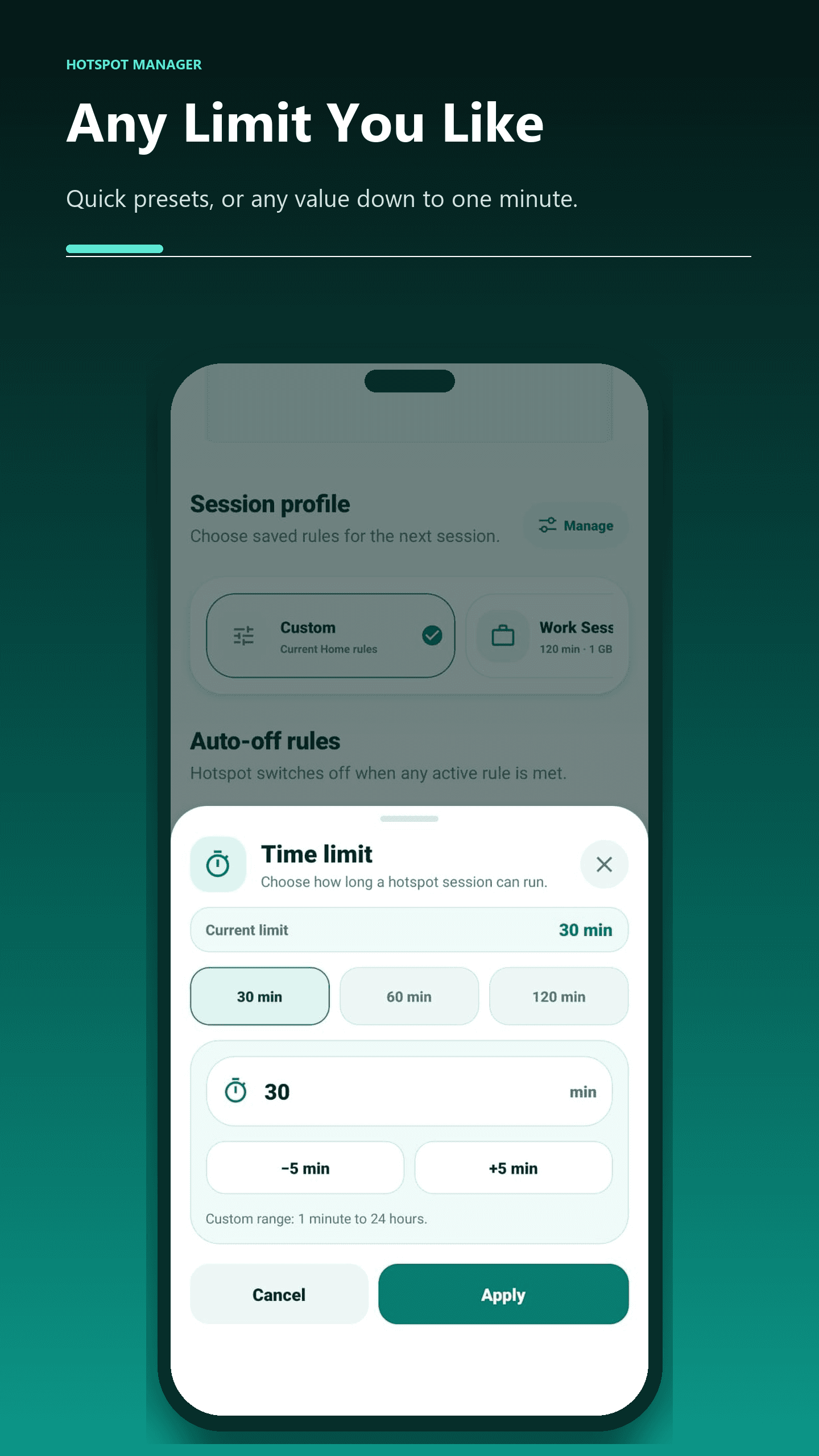
- Open the session time-limit control. Choose a preset or enter the number of minutes you need, then tap Apply.
- Review the other active rules. A battery or data rule can end a session before the timer reaches its limit.
- Start the session with the main control. Follow any Android permission or Settings prompt shown by the app.
- Keep the phone nearby during your first trial and check the timer, connection, and any compatibility message together.
Check what happens when the timer ends
When the limit is reached, read the result shown by the app. Successful automatic stopping and a request to switch the hotspot off manually are different outcomes. A finished app session alone is not proof that the Android hotspot switch is off.
If Android does not allow the automatic action, use the Settings shortcut or the system Hotspot tile and turn the connection off yourself. Confirm the switch in Android Settings rather than assuming that the connected laptop has disconnected.
For example, a 20-minute session is useful for a short document upload. At the end, confirm that the upload has finished and check the phone's actual hotspot state. The timer creates a routine; the phone's reported control result tells you what action was completed.
Use time, battery, and data rules deliberately
A time limit does not reserve a fixed amount of data. A brief software download may use more mobile data than a much longer text-editing session. Choose a data rule as a separate decision, based on the readings and control capabilities available on your phone.
Likewise, a battery threshold serves a different purpose from a timer. Check all active rules when a session ends sooner than you expected. Save a reusable profile for a routine you understand, and review its values before starting it again.
If the hotspot does not stop automatically
Check the control or compatibility notice in Hotspot Manager first. Allow the specific access requested for the feature, then repeat a short session you can observe. Menu wording can change between Android devices, so use the app's Settings shortcut when one is available.
If it still requires manual stopping, plan around that limitation. Record your phone model, Android version, and the exact message before contacting support. Core session rules are part of the Free tools; a Pro subscription does not override Android's permission restrictions.
Need help with your phone?
Include your phone model, Android version, and the app message when you contact Hotspot Manager support.